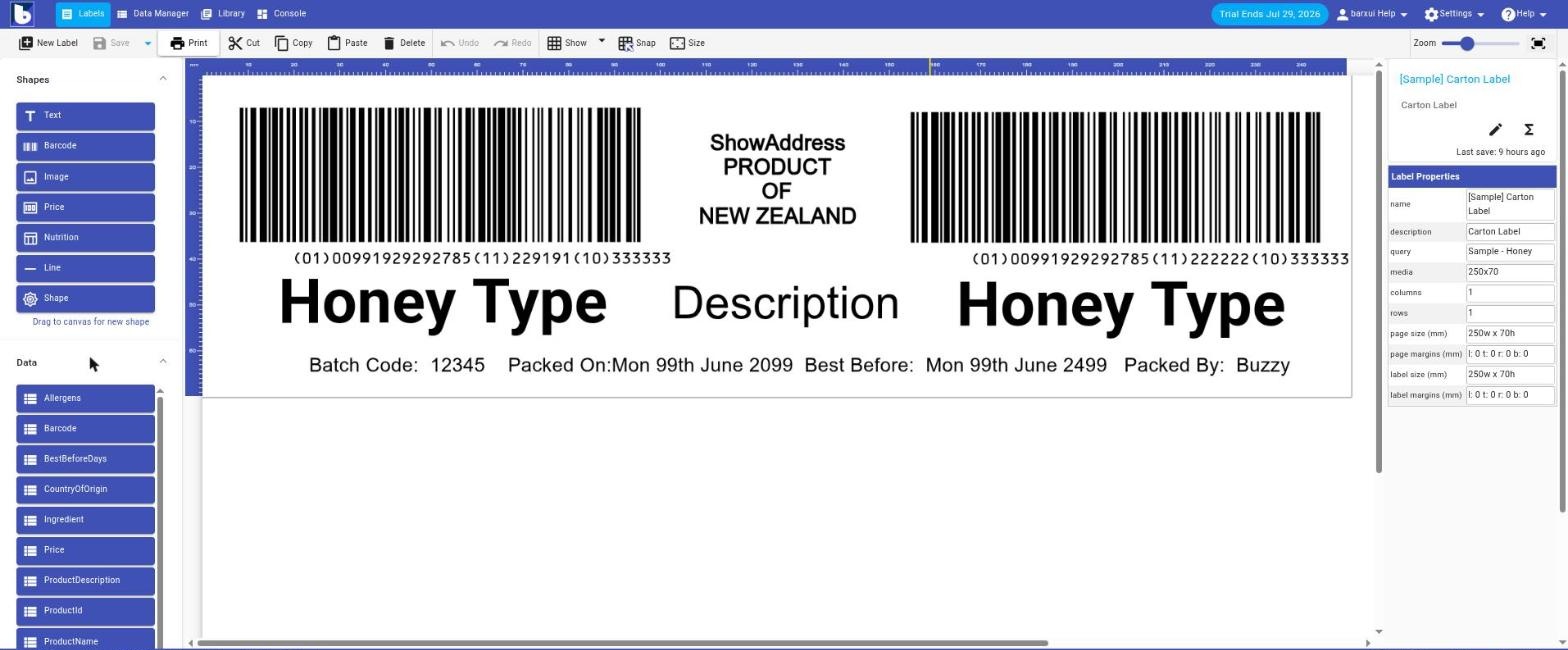
Most labels pull their content from a table in Data Manager rather than having text typed in manually. Connecting a label to data is what makes it possible to print one label per row — a batch of address labels from a spreadsheet, a run of product labels from your item list, and so on.
Connecting a label to a data source
A label’s data source is set from its Data Source field when creating the label, or from the query property in Label Properties. Choose from:
- — no data — — a static label with no connected table (e.g. a fixed sign).
- Any table in Data Manager (e.g. Sample – Products).
- A console’s captured data (e.g. a Batch Print Console).
Using data fields on the canvas
Once a label is connected, expand the Data panel on the left of the Label Designer. Every column from the connected table appears as a draggable field (e.g. ProductCode, Description, ItemPrice, S.Address). Drag a field onto the canvas, or drop it onto an existing Text, Barcode, Price, or Nutrition shape, to bind that shape’s content to the column.
Fields from a joined/related table appear with a prefix (e.g. S.Name, S.Address for a linked Supplier table).