A Console is a dedicated print station for a specific workflow — searching for an item and printing its label, or scanning a batch of barcodes and printing them all at once. Consoles are added as AddOns (Settings → AddOns) and then appear as tabs under the Console menu.
You can configure more than one console — for example, one for scanning incoming stock and a separate one for reprinting product labels — and switch between them from the tab strip.
Item Print Console
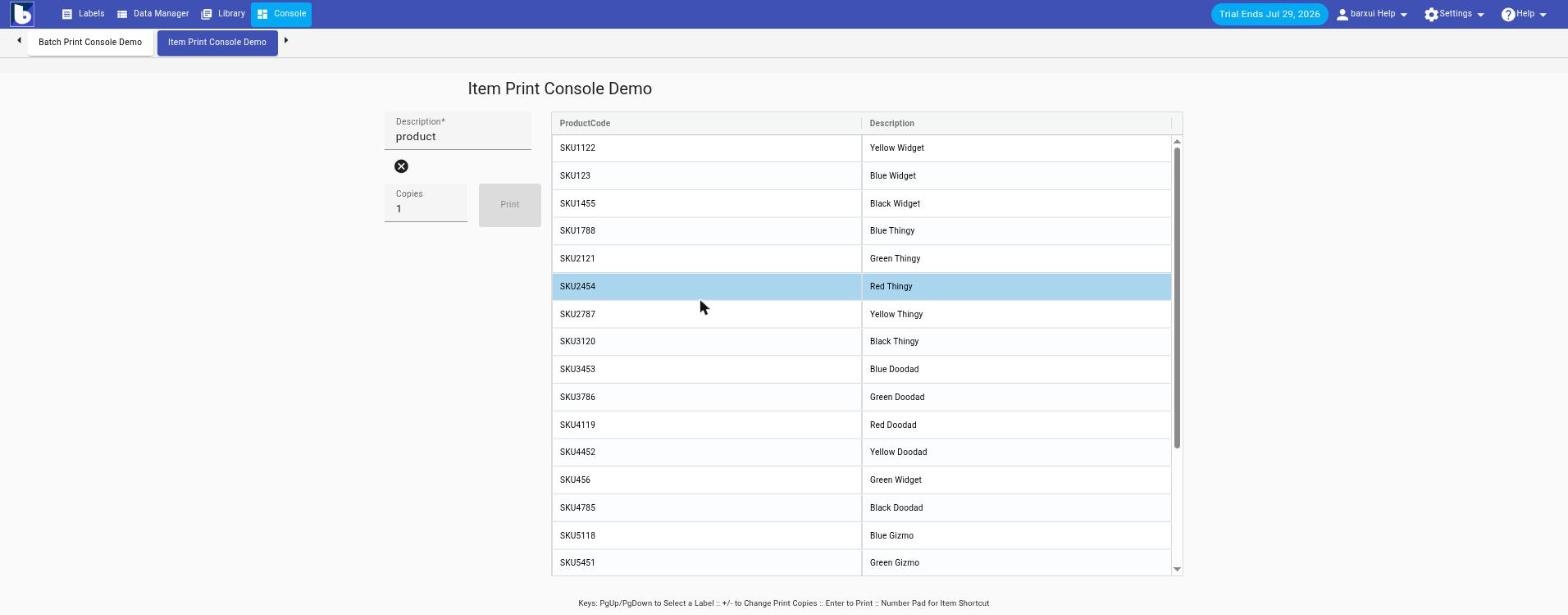
Search a connected data table for an item and print its matching label — ideal for a barcode scanner workflow where you look up a product and print one label at a time.
Setup (Settings → AddOns → Item Print Console → Install):
- Name — console name, shown as its tab.
- Item List — the Data Manager table to search.
- Item Tag — a label for each item in the list.
- Item Search Column — which column to search against.
- Item Description Column — which column shows as the item description.
- Function Key Column — optional; assign a function key shortcut to items.
- Label Groups Table — the table defining which label(s) are available for the console.
- Default Label / Default Printer — pre-selected label and printer.
- Print Immediately — skip the print dialog and print straight away.
Using it: type into the search box to filter the item list, select a row, and print. Keyboard shortcuts: PgUp/PgDown to move between items, +/- to change the copy count, Enter to print, and the number pad for quick item shortcuts (if configured).
Batch Print Console
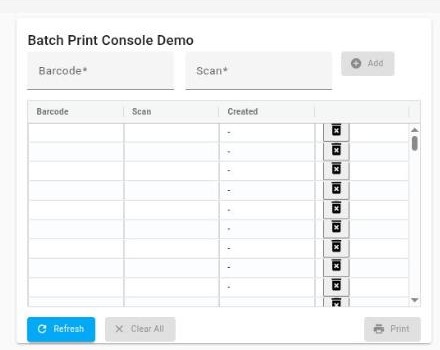
Capture a batch of scanned or manually entered barcodes, then print labels for all of them in one go.
Setup (Settings → AddOns → Batch Print Console → Install):
- Name — console name, shown as its tab.
- Category Name — label for the barcode/scan grouping.
- Label / Printer — which label design and printer to use.
- Print Immediately — skip the print dialog and print straight away.
Using it: enter or scan a barcode into the Barcode field, add a note in Scan if needed, and click Add — each entry appears in the list below with a timestamp. Use Refresh to reload, Clear All to empty the queue, and Print to send the whole batch.