
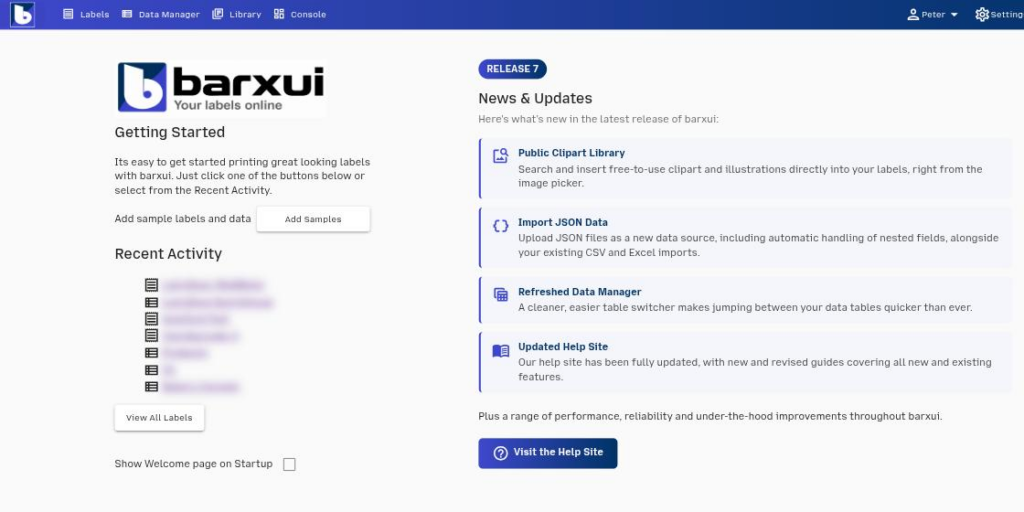
When you sign in to barxui, or click the barxui logo from anywhere in the app, you’ll see the Home page. It’s a quick-start hub for getting going and for staying on top of what’s new.
Getting Started
The Getting Started panel is the fastest way to have something to look at. If you’re not sure where to start, click one of the labels listed under Recent Activity, or use Add Samples to populate your account with sample labels and data in one click.
Add Samples
Click Add Samples to add a set of ready-made sample labels, and the data tables they use, to your account. Choose a Samples Set from the dropdown — currently General Samples, which adds an Address label, Name tag and others — then click Add Samples to confirm.
Important: if you’ve already added a samples set before, adding it again creates duplicate labels rather than replacing the originals — the dialog warns you about this. Delete any duplicates you don’t want from the Label Manager.
Recent Activity
Recent Activity lists the labels and data tables you’ve used most recently, so you can jump straight back into what you were working on. Click any item to open it directly in the Label Designer or Data Manager. Click View All Labels to go to the full Label Manager.
Show Welcome Page on Startup
Use this checkbox to control whether the Home page is shown automatically each time you sign in. Turn it off if you’d rather land straight on your last-used screen instead.
News & Updates
The News & Updates panel highlights what’s new in the current barxui release, with a short summary of each headline feature. Click Visit the Help Site to open this help site in a new tab.