
A Media Template describes the physical stock a label prints onto — its size, how many labels fit on a sheet, and the margins around them. Every label design is built against a Media Template, and changing the template updates every label that uses it.
barxui comes with several sample templates (e.g. 100×150, Cross Dock, 60x70mm White Thermal Paper), and you can create your own to match your printer stock.
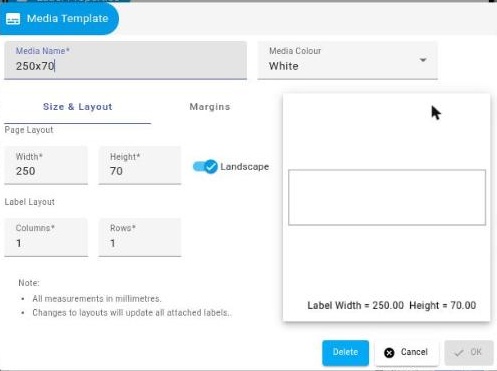
Size & Layout
- Width / Height — the dimensions of the page or roll, in millimetres.
- Landscape — rotates the layout 90°.
- Columns / Rows — how many labels are arranged per page. Use this for sheet stock with multiple labels per page (e.g. an A4 sheet of address labels); leave both at 1 for single-label roll stock.
Margins
- Page Margins (Left, Top, Right, Bottom) — space around the outside edge of the whole page or roll.
- Page Header / Footer — reserved space at the top and bottom of the page, outside the label area (for sheet layouts).
- Label Margins (Left, Top, Right, Bottom) — space inside each individual label’s boundary.
All measurements are in millimetres.
Creating or editing a Media Template
You don’t need a separate settings page to manage templates — they’re created and edited right from the label editor:
- When creating a new label, or from an existing label’s properties, open the Media dropdown.
- Click the gear icon next to it to edit the currently selected template, or the + icon to create a new one.
- Set a Media Name and, optionally, a Media Colour (useful for telling similar-sized stocks apart at a glance).
- Fill in Size & Layout and Margins as above, then OK.
Note: editing a Media Template updates every label currently using it — there’s no “save as copy,” so if you need a variant, create a new template instead of editing a shared one.